Multifamily Punch List Software for Faster Closeout
Managing punch lists across 50+ units, 3 buildings, and 8 subcontractors is fundamentally different from a single-family closeout. Spreadsheets break down. Text chains go cold. Re-walks eat weeks. PunchOutPro brings photo-based accountability, real-time subcontractor visibility, and structured handoff workflows to multifamily punch management—so your closeout stays on schedule.
The Problem & The Solution
The multifamily punch challenge: When you're closing out a 180-unit building with rolling unit inspections, staggered trade availability, and units scattered across floors, a single spreadsheet or text thread isn't a project management tool—it's a data liability.
What PunchOutPro delivers: One system where units are organized by building and floor, punch items are tagged by trade and status, photos are automatically time-stamped and geo-tagged, subcontractors see only their work, and verification happens in real time. Your closeout moves at the pace of your inspections, not the speed of email.
Why Multifamily Closeout Gets Messy
Single-family punch lists are linear. A few rooms, a handful of trades, one walkthrough with a checklist. Multifamily is exponentially more complex.
The Scale Problem
A 180-unit closeout isn't one punch list—it's 180 punch lists that must be coordinated. With an average of 15 punch items per unit, you're tracking roughly 2,700 individual items. If your superintendent is walking 2 buildings per week (a typical re-inspection cadence), they're managing punch resolution across rolling timelines. Some units might be move-in ready; others are three weeks from completion.
The Trade Fragmentation Problem
Eight trades (drywall, paint, flooring, mechanical, electrical, plumbing, tile, and hardware) aren't working linearly. They're moving through units in waves, often overlapping. Mechanical might be finishing rough-in in Unit 201 while paint is prepping Unit 305. If you're coordinating via email or a shared spreadsheet, the data is:
- Impossible to keep current in real-time
- Fragmented across phone calls and text threads
- Prone to duplicate data entry (different people editing the same sheet, creating version conflicts)
- Difficult to audit—you can't prove when a photo was taken or who marked an item "complete"
The Accountability Void
When a subcontractor says "that paint punch in 104 is done," you verify it yourself. Then two weeks later, a final walkthrough surfaces the same issue. Why? The photo was taken on the wrong wall, or the lighting made it impossible to see. Or the sub completed it but marked it in the wrong unit. Paper trails are slow; re-walks destroy timelines.
The core issue: multifamily punch management isn't really a punch list problem—it's a coordination problem. You need a system that lets each trade see and work on only their items, that captures proof in real time, and that surfaces status changes to everyone who needs to know.
What Breaks in Spreadsheets and Text Threads
Most multifamily teams attempt punch management with a combination of Excel, Google Sheets, and SMS/WhatsApp. It feels cheap and fast. Until it isn't.
Spreadsheets Fail at Scale
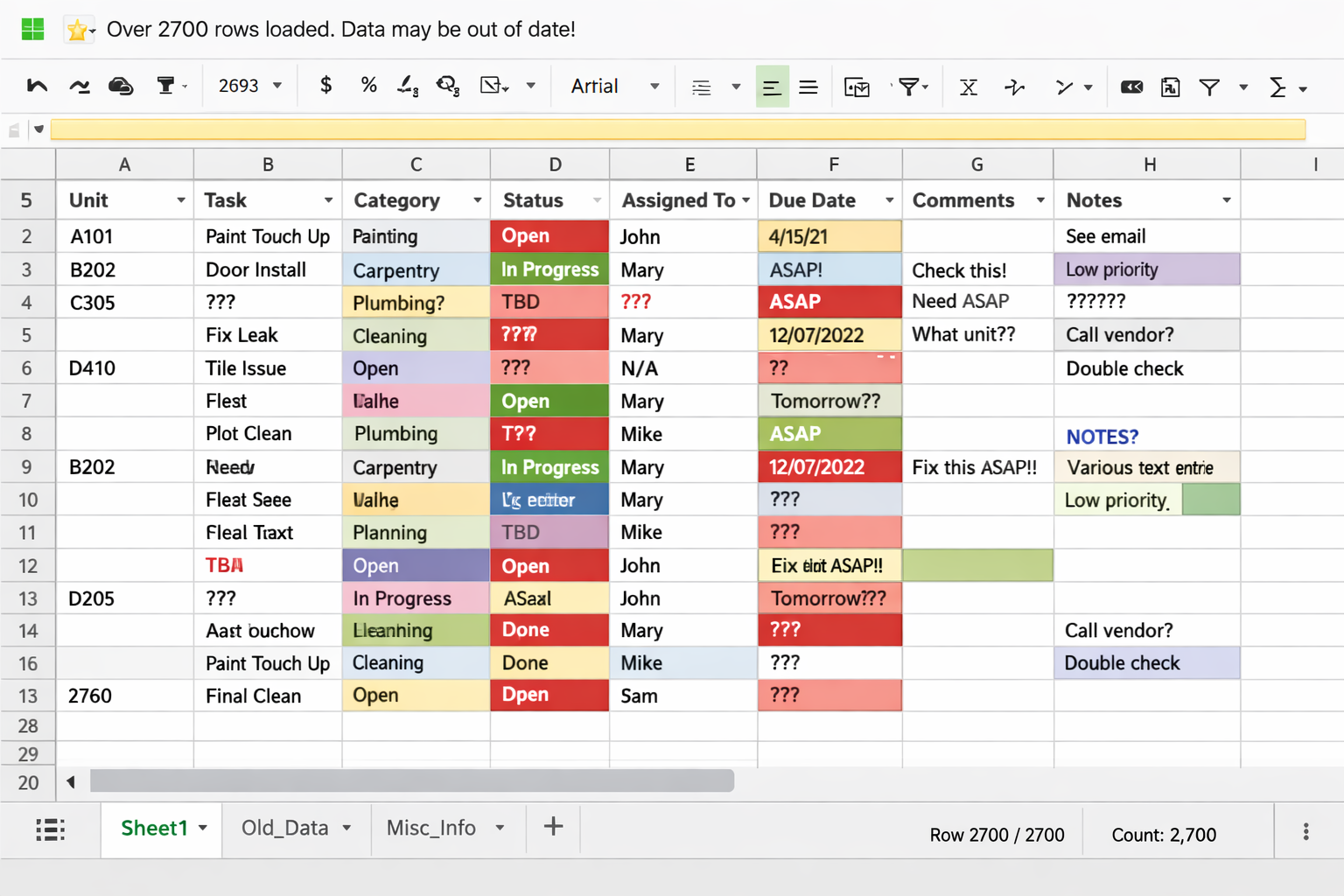
A single sheet with 2,700 rows and 15 columns becomes unmanageable. Filtering by unit, trade, and status requires multiple sheets. People edit different versions. Dates and photo file names become inconsistent. You end up with four "final" versions of the same sheet, all with conflicting data.
Text Threads Are Not Audit Trails
"Hey Dave, is the baseboard in 205 locked in?" gets buried under 50 other messages by Thursday. There's no single source of truth. Subcontractors claim they texted completion; you have no record. Rework happens. Disputes happen. Your timeline slips.
No Photo Chain of Custody
A punch item without a photo is a claim. A claim without a timestamp and location context is a liability. Spreadsheets force people to manually file and label photos, or they store them in a shared drive with naming conventions that break down after a week. You end up walking the same unit twice because the "before" photo and "after" photo were labeled differently.
Subcontractors Have No Clear Visibility
If you email a sub a spreadsheet with punch items, they have to:
- Find their rows (sifting through 2,700 items across 10+ sheets)
- Cross-reference unit numbers and room types
- Email or call with status updates
- Wait for you to manually update the sheet
This workflow is so inefficient that most subs don't engage. They just show up for re-walks unprepared, then dispute punch findings. Closeout stalls.
No Real-Time Status Visibility
Your superintendent might tell you "All drywall is done," but you have no way to verify that claim. A centralized, live punch list with status updates, assignees, and photos gives you instant transparency. Spreadsheets can't do this—and even if you refresh constantly, the lag between action and visibility is hours or days.
How PunchOutPro Works on Site
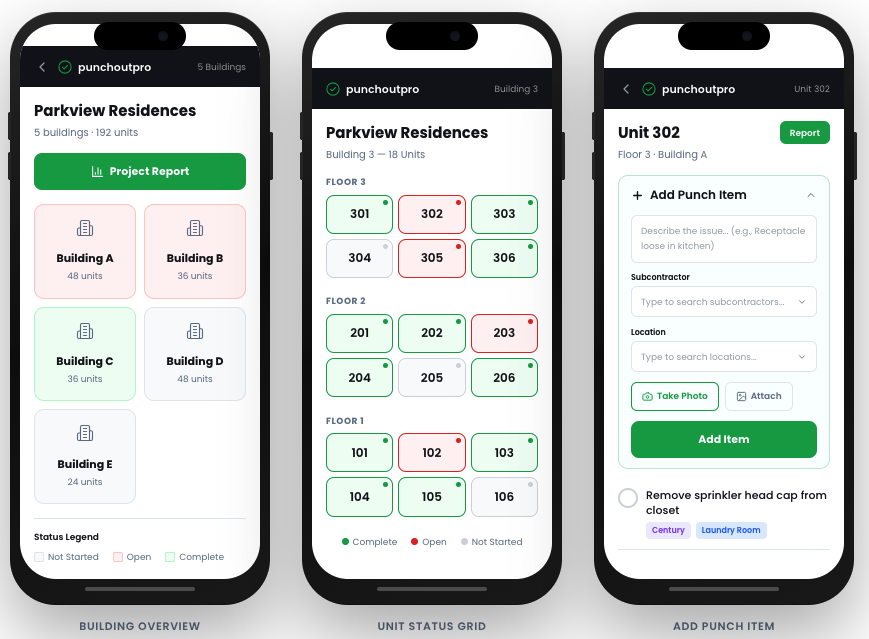
PunchOutPro is built for the multifamily closeout workflow. It's organized by building, floor, and unit—not a monolithic sheet.
1. Identify & Photograph
Your superintendent walks a unit (or a floor) and uses the mobile app to snap photos of each punch item. Each photo is automatically:
- Geo-tagged (unit location recorded)
- Time-stamped (impossible to fake the date)
- Organized by room (photos stay with the correct unit)
They assign the punch to a trade (paint, mechanical, etc.) and add a description in 10 seconds. No separate photo management, no file naming chaos.
2. Route & Assign
The system automatically notifies the assigned trade. If it's a drywall punch across Units 201, 305, and 407, the drywall sub gets a notification with:
- The punch items that belong to them (only)
- Photos of the exact issue
- Unit and building location
- Priority and deadline
The sub sees only their work, not 2,700 rows of data.
3. Verification in the App
When the sub completes work, they photograph the resolution directly in the app. Your team gets a notification with before/after images side by side. You verify (or request rework) in seconds. No back-and-forth emails. No ambiguity about which unit or which item.
4. Track & Report
Real-time dashboards show:
- Open items by trade
- Items by building and unit
- Completion rate by day (velocity tracking)
- Re-walks scheduled vs. completed
If a unit has zero open punches, it's ready for final release. If a trade is slow, you see it immediately and can escalate.
5. Export & Closeout
When the building is punch-free, PunchOutPro exports a final punch list report (or generates a PDF) with photo evidence for every item that was raised and resolved. This becomes your closeout documentation. Every photo has a timestamp, location, and status. Perfect for:
- Owner handoff
- Final inspections
- Lender review
- Warranty disputes (you have proof of what was completed)
A Real Scenario: 180-Unit Multifamily Closeout
The Setup
You're the GC superintendent on a 180-unit multifamily property across 3 buildings. Final inspections start in 2 weeks. Your timeline: 6 weeks to complete all punch work and release units for occupancy.
The Challenge (Without PunchOutPro)
You send out an inspection crew to walk each building. They return with a list of 2,700 items scrawled on paper and photos on a phone. You (or a coordinator) spend 3 days manually entering these into a spreadsheet, organizing by unit and trade. Drywall gets one email with their section. Paint gets another. Mechanical gets a third. Within a week, items are marked complete in the spreadsheet, but you have no photos. You re-walk Unit 105 and find the drywall issue wasn't actually fixed—the photo was from a different wall. Mechanical says they finished the HVAC rough-in, but the photo is blurry and taken at night. Two weeks later, you're still walking the same units because accountability is unclear.
Total wasted time: 10–14 days. Closeout slips. Owner delays occupancy. Your GC is fined.
The Workflow (With PunchOutPro)
Week 1: Initial Walk & Punch Entry
- Your inspection crew walks Building A (60 units) with the PunchOutPro app. They photograph and tag each punch item as they go. By end of day, all 900 items are in the system, organized by unit and room.
- The system auto-routes items to the assigned trades. Drywall sees 280 items across all 60 units. Paint sees 200. Mechanical sees 150. Each trade gets a mobile notification with their work queue.
- You spend 30 minutes reviewing the dashboard—zero manual data entry. You can already see which trades are overloaded and which units are most punch-heavy.
Week 2: First Trade Pushback
- Drywall is hammering through their 280 items. As they finish each one, they photograph the resolution in the app. Your QA person gets notifications and verifies items in real time. If it's not right, they mark it for rework in 5 seconds. No email chains.
- By mid-week, you schedule a re-walk of Building A (units where major trades are finishing). Your crew doesn't need to re-check every punch—they focus on trades that came in below your quality bar.
- Building A: 60 units down. 8 open items (all rework).
Week 3-4: Scale & Momentum
- Walk Buildings B and C (120 more units, ~1,800 items). Same process: photo, tag, route. System is now managing 2,700 items across 3 buildings and 8 trades.
- Your dashboard shows real-time completion rate by trade and by building. Mechanical is lagging (138 open items). You call the mechanical sub and pull forward a crew from Building C to Building B. Visibility = control.
- Re-walk schedule is now: Building A (final inspection, 0 open items), Building B (50 open items, 2 per unit average), Building C (just starting).
Week 5-6: Final Push
- Weeks 5-6 are re-walk and rework cycles. Your super walks completed areas to verify. Stragglers get escalated. Rework is documented the same way—photo before, photo after, timestamp, proof.
- By end of Week 6, all 180 units are punch-free and ready for owner turnover.
The Output:
- A final punch list PDF (or export) with photo evidence for every single item raised and resolved—indexed by unit, building, and trade.
- Proof that every trade completed their work to your standard.
- Zero re-walk surprises. No disputes about "was that really fixed?"
- Timeline met. Owner happy. Next project starts on schedule.
See PunchOutPro in Action
Run through a punch list walkthrough on your own property. No credit card required. 14 days, fully featured.
Start Your Free TrialFeatures Built for Multifamily Closeout
Mobile-First Photo Documentation
Snap, tag, and geo-locate punch items on site. Every photo is timestamped and linked to the correct unit. No file management overhead.
Trade-Based Work Queues
Subcontractors see only the items assigned to them—organized by building, unit, and priority. No scrolling through 2,700 rows.
Real-Time Verification & Sign-Off
Before/after photos are paired automatically. Verification happens in the app, not via email. Status updates are instant.
Unit-Level Tracking
Know exactly which units are ready for occupancy, which are mid-punch, and which need re-walks. Organized by building and floor.
Multi-Building Dashboard
Track progress across all buildings in one view. Identify bottlenecks and route crews efficiently. See velocity and ETA in real time.
Export-Ready Reporting
Generate final closeout PDFs with photo evidence, indexed by unit and trade. Perfect for owner handoff and lender review.
Why PunchOutPro Outpaces Spreadsheets for Multifamily
| Feature | Spreadsheet | PunchOutPro |
|---|---|---|
| Mobile Data Entry | Manual (pen & paper, then transcription) | Mobile app with auto-geo-tag and timestamp |
| Photo Organization | Manual file management; inconsistent naming | Auto-linked to unit and timestamp; organized by default |
| Subcontractor Visibility | Full spreadsheet sent (information overload) | Work queue showing only their items, mobile-friendly |
| Status Verification | Email claims or manual re-walks | Before/after photos in app, real-time verification |
| Multi-Building Tracking | Multiple sheets required; hard to sync | Single dashboard, filterable by building, unit, trade |
| Real-Time Status Updates | Manual re-entry; hours/days lag | Instant notifications and dashboard updates |
| Closeout Documentation | Manual compilation; missing photo evidence | One-click export with full photo chain of custody |
Getting Started: How Fast Can Your Team Move?
Who Sets It Up?
You (or your coordinator) create the project in PunchOutPro and define your building structure: Building A (60 units, 3 floors), Building B (60 units, 3 floors), Building C (60 units, 3 floors). This takes 15 minutes.
You then invite subcontractors and your team to the project. They download the mobile app, log in, and see their work queue. No training required—the interface is designed for people who walk buildings, not software engineers.
How Quickly Can You Start?
Day 1: Create project, invite team and trades.
Day 2: Your first inspection crew walks a unit and starts logging punch items in the app. By lunchtime, your trades are receiving notifications and starting work.
The system is live and working within 48 hours. No migration, no data import, no consulting. Just start punching.
What Does the 14-Day Trial Cover?
Full access to all features. You can:
- Create multiple buildings and units
- Invite unlimited team members and trades
- Upload unlimited photos
- Generate reports and exports
- Access the mobile and web apps
No credit card required. No feature limitations. You get the full product for 14 days to test on a real project.
Questions Multifamily Teams Ask
Can we set up PunchOutPro mid-project if we've already started punch?
Yes. You can start a PunchOutPro project at any stage of closeout. If you've already logged items in a spreadsheet, we can help you import them (with photos if you have them). Most teams find it's worth the 1-2 day import lift to get real-time visibility and accountability for the remaining 60–80% of punch work.
How do we handle items that span multiple trades (e.g., a corner where drywall, paint, and trim all need fixes)?
You can tag a single punch item with multiple trades, or split it into sub-items for each trade (one item for drywall, one for paint, one for trim). The system will notify each trade, and each completes their portion. On re-walk, you verify all portions in a single photo sequence. Many teams prefer splitting for clarity: each trade owns their work and completes it independently.
What if a trade doesn't have a smartphone or wifi on site?
Your team (super, QA lead, or coordinator) can photograph and log items on behalf of trades using your device. Trades can still verify completion via the app, or they can report completion verbally/via phone and your team verifies with a photo. It's less ideal than trade-driven entry, but it works. Many general contractors still manage this way and see huge efficiency gains versus spreadsheets.
Can we integrate PunchOutPro with our construction management software (e.g., Procore, e-Builder)?
We have API integration available on our professional plan. You can push punch list data to your existing CMS or pull daily snapshots for reporting. For most multifamily projects, PunchOutPro is sufficient as a standalone punch management tool—but we can connect it to your broader workflow if needed.
How do we manage punch items that span units (e.g., a hallway or common area)?
You can create a "Common Areas" section in your building structure for shared spaces (lobbies, hallways, exterior, courtyards, etc.). Items logged here are not tied to a specific unit, so trades know they're working on building-level items. Many multifamily projects use a Common Areas building as a catch-all for punchwork that doesn't belong in a unit.
What happens to our data if we cancel or the trial ends?
Your data stays in PunchOutPro. You have read-only access to completed punch lists and reports. If you need to export your data (photos, punch list, reports) before canceling, you can—everything is exportable as PDFs or CSV. You own your data.
Learn More About Multifamily Punch Management
- How to Manage Punch Lists on Multifamily Projects — Best practices for multi-building closeouts, re-walk scheduling, and trade coordination.
- Punch List Software vs. Spreadsheets — A detailed breakdown of why software beats spreadsheets for complex projects.
- Construction Punch List Template — A free Excel template to get started, or a reason to switch to PunchOutPro.
- PunchOutPro Pricing — Plans for teams of any size. Free trial, no credit card.