Free Construction Punch List Template
A well-structured punch list template can handle small projects cleanly. We've built one for you—organized by location, trade, and status, and ready to adapt to your workflow.
Download it free, no email required. It works with Excel, Google Sheets, or Numbers. And when your project outgrows a spreadsheet, PunchOutPro picks up where Excel leaves off.
Download Free Template
Excel-based punch list template built by construction teams.
Download Free Template (.xlsx)What's Included
This template gives you a clean, pre-formatted spreadsheet with essential tracking fields. Here's a sample of what you'll find:
| Item # | Location | Description | Trade | Status | Date Logged | Notes |
|---|---|---|---|---|---|---|
| 001 | Bldg A / Unit 102 | Drywall crack above door frame | Drywall | Open | 3/10/2026 | Hairline crack, <5 inches |
| 002 | Bldg A / Unit 102 | Paint touch-up on south wall | Paint | Open | 3/10/2026 | Match eggshell finish |
| 003 | Bldg B / Unit 205 | Kitchen faucet loose at base | Plumbing | Open | 3/11/2026 | Still leaks at connection |
| 004 | Bldg A / Breezeway | Light fixture cover cracked | Electrical | Complete | 3/8/2026 | Replaced 3/12 |
| 005 | Bldg B / Unit 201 | Baseboard nail pops | Drywall | Open | 3/11/2026 | 4 locations, master bedroom |
| 006 | Bldg A / Unit 103 | Bathroom tile grout gap | Tile | Open | 3/10/2026 | Shower wall, 2x2 area |
Pro tip: The template includes tabs for each building, with filtering set up so you can quickly isolate items by trade or status. Customize the columns to match your workflow—add photo reference columns, due dates, or contractor assignments.
How to Use This Template
Here's the workflow that makes this template effective for small to mid-sized projects:
1. Set Up Tabs by Building or Phase
Create separate worksheet tabs for each building or project phase. This keeps your punch list from becoming a wall of data. If you're managing a 20-unit complex, one tab per building is standard. A single-building project? One tab for the whole job is fine.
2. Log Items During Walkthroughs
During your closeout walkthroughs, open the tablet or laptop version and add items in real time. Include the location (building/unit/room), a clear description, the responsible trade, and the date you found it. Don't worry about Status yet—it starts as "Open" for everything new.
3. Organize by Trade for Routing
Use Excel's filter feature to show only items assigned to Drywall, Electrical, HVAC, etc. Print or screenshot the filtered view and email or text it to each subcontractor. This beats sorting items manually in an email.
4. Track Status and Closeout Dates
When the sub completes their work, update Status to "Complete" and add the completion date. At a glance, you can see how many items are still open and which trades are lagging.
5. Keep Photos Separate (For Now)
Store photos in a folder named by item number (001-drywall-crack, 002-paint-touchup, etc.). Add a "Photo Reference" column in the spreadsheet with the folder name or file path. Not ideal, but it works for small projects.
6. Generate a Summary Report
At the end, create a simple summary: total items, items open, items complete, and items by trade. This is your closeout punch list report—useful for your GC, owner, or lending documentation.
When a Template Is Enough
Be honest about your project size. A spreadsheet template is genuinely sufficient for:
Small Residential or Light Commercial
Single building, under 30 units, straightforward scope. One super managing everything. 1–2 trades. Closeout isn't compressed. Hand-counted punch items fit comfortably on a single sheet.
Straightforward Multi-Site (Single Trade Focus)
3–5 small buildings, one primary trade (e.g., painting touch-ups across a group of townhomes). Low coordination overhead. Each site can live on its own tab.
In these scenarios, the template keeps you organized without overhead. You'll never wonder "Wait, did we fix that crack?" because it's right there in row 42.
When a Template Breaks Down
Spreadsheets have limits. Recognize these warning signs early:
Over 50 Units or Multiple Buildings
Filtering across tabs becomes your new job. You spend time hunting across sheets instead of managing the work. If you have 5–10 buildings, each with 50+ items, your "simple template" is now a filing cabinet that requires constant organization.
4+ Trades Involved
Routing punch items to the right subcontractor via email or screenshot gets error-prone. You copy the filter wrong, someone gets the wrong list, work gets duplicated or missed. Manual coordination scales poorly.
Real-Time Collaboration
If your super is logging items during a walkthrough while the PM reviews them remotely, a shared Excel file creates version conflicts. "Wait, did you see my update from 30 minutes ago?" becomes a common question.
Re-Walks and Verification
A second closeout walk is standard—you need to verify that completed items actually stay closed. In a spreadsheet, you're re-scanning the entire list and manually checking which items need re-verification. PunchOutPro marks items for re-inspection automatically.
Photo Management at Scale
By item 150, your photo folder is chaotic. Linking photos to punch items requires naming discipline and folder hunting. A system that auto-links photos to items eliminates this friction.
Compressed Closeout Timeline
If you have 7–10 days to close 200+ items, data entry becomes the bottleneck. Your team wastes 5 hours typing instead of walking the site. Mobile punch capture (with photos attached in real time) becomes essential.
Lender or Owner Reporting
Generating a polished punch list report from a spreadsheet takes manual formatting. Charts, status summaries, sign-off proof—all require copying and pasting into a document. Software handles this instantly.
Template vs. Software: Side-by-Side
Here's how a spreadsheet template compares to PunchOutPro across critical dimensions:
| Capability | Template | PunchOutPro |
|---|---|---|
| Cost | ✓ Free | Starting at $59/month |
| Mobile Data Entry | ✗ Not practical | ✓ Full offline support |
| Photo Linking | ✗ Manual folder matching | ✓ Auto-attached to items |
| Trade Routing | ✗ Copy/paste to emails | ✓ Automated assignments |
| Real-Time Updates | ✗ Version control headaches | ✓ Live across teams |
| Multi-Building Tracking | ✓ Works for 2–3 buildings | ✓ Scales to dozens |
| Verification / Re-Walk | ✗ Manual re-scanning | ✓ Built-in verification mode |
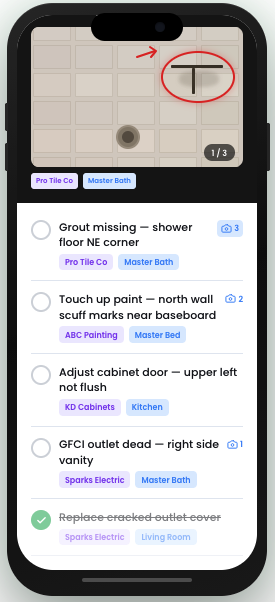
| Compliance Reporting | ✗ Manual formatting | ✓ One-click reports |
The bottom line: If you're managing a small, straightforward project (under 50 items, 1–2 buildings, one or two trades), the template is genuinely enough. If you're juggling multiple buildings, teams, or tight timelines, PunchOutPro saves you hours and eliminates manual coordination headaches.
Outgrowing Your Spreadsheet?
Try PunchOutPro free for 14 days. Import your existing punch data and see the difference real-time tracking makes on your next closeout.
Start Free Trial Schedule DemoFrequently Asked Questions
Yes, completely free. No email required, no signup, no strings attached. Download it directly and start using it immediately. We believe in giving away real value. If the template works great for your project, wonderful. If you eventually outgrow it and need PunchOutPro, we'll be here.
Absolutely. The template is a starting point. Add columns for Due Date, Contractor Name, Cost, or anything else your team needs. Rearrange columns, change tab names, adjust filters—it's your spreadsheet. We've just set it up with the essentials so you don't start with a blank sheet.
The recommended approach is to store photos in a folder structure (by item number or building) and reference the file path or folder name in a "Photo Reference" column. For example, add a column called "Photo Path" and enter "001-drywall-crack" or a full file path. It's not as seamless as software that auto-links photos, but it's manageable for smaller projects.
Realistically, 200–300 items across 2–3 buildings before the overhead becomes noticeable. Beyond that, filtering, sorting, and manual coordination start eating into your productivity. If you're expecting 500+ punch items or managing 5+ buildings simultaneously, a software solution is better use of your time.
Yes. If you start with this template and decide to switch to PunchOutPro, we can help you import your existing punch list data. You won't lose your history or have to re-enter everything. Just reach out to support and we'll walk you through the import process.